

Introduction to Samsung Internet Browser
Samsung Internet Browser is a powerful mobile web browser designed to provide a seamless, secure, and highly customizable browsing experience. Unlike many generic browsers, it combines speed, efficiency, and cutting-edge privacy protection tools to ensure users can explore the web with confidence.
Originally developed by Samsung Electronics, this browser has grown into one of the most feature-rich alternatives to standard browsers on Android devices. With unique tools like Smart Anti-Tracking, Video Assistant, and a customizable menu, Samsung Internet Browser isn’t just another browser—it’s a complete browsing ecosystem that puts control back into the hands of users.
Whether you’re streaming videos, researching online, or simply browsing your favorite websites, Samsung Internet Browser ensures the experience is smooth, private, and tailored to your needs.
Introduction to Samsung Internet Browser
Key Features of Samsung Internet Browser
1. Video Assistant
Samsung Internet Browser enhances your multimedia experience with its built-in Video Assistant. This feature allows you to control video playback seamlessly, offering buttons for full-screen mode, resolution settings, and picture-in-picture mode. Watching videos on mobile has never been this convenient.
2. Dark Mode
With a fully integrated Dark Mode, Samsung Internet Browser helps reduce eye strain and conserves battery life on AMOLED screens. The dark theme applies not only to the browser’s interface but also extends to web pages that support it, offering a consistent and comfortable browsing experience at night or in low-light environments.
3. Customizable Menu and Extensions
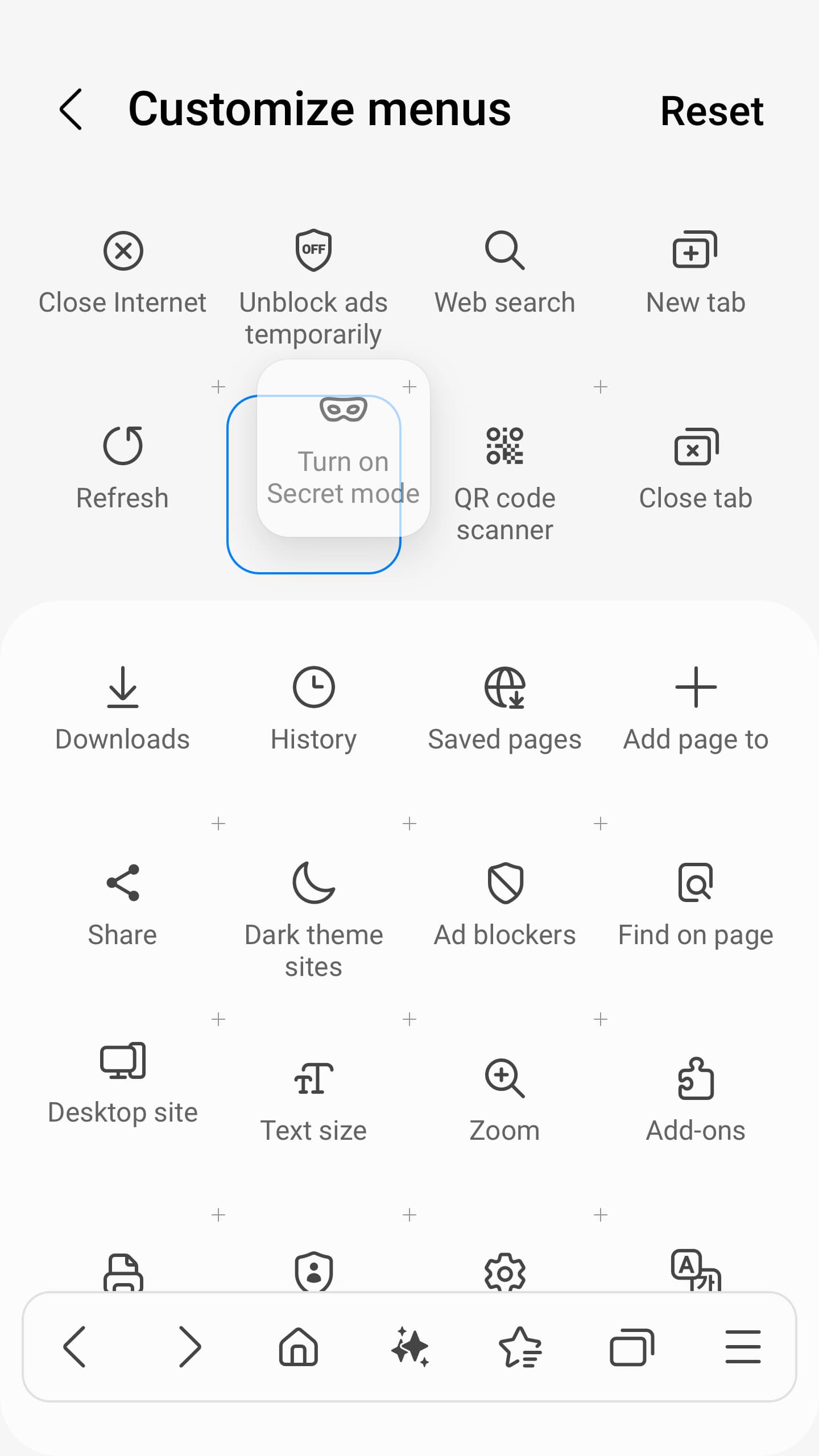
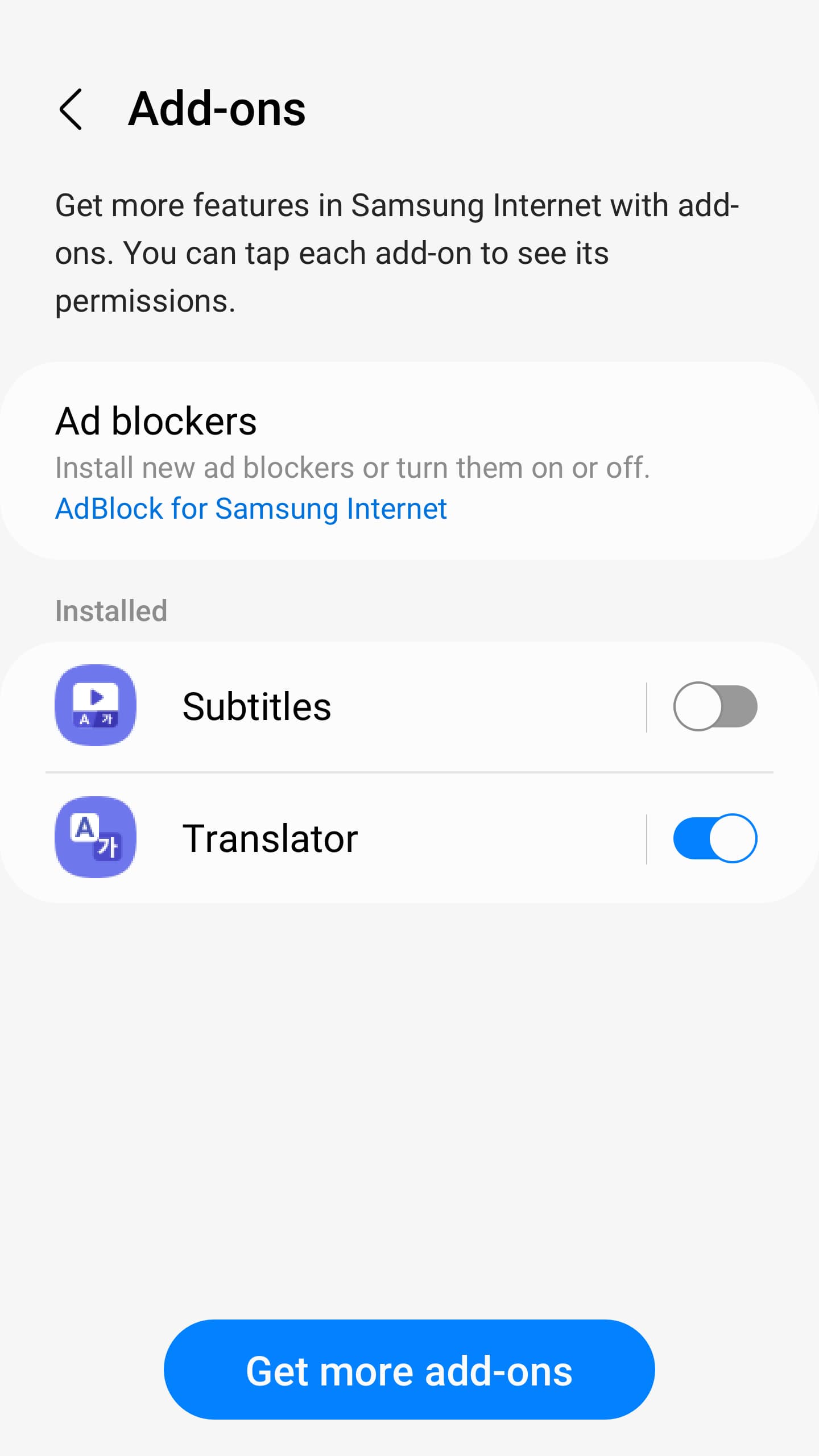
One of the strengths of Samsung Internet Browser lies in its flexibility. The menu is fully customizable, allowing users to arrange features and shortcuts based on personal preference. Extensions, such as Translator, add even more functionality, making the browser a powerful tool for both everyday users and professionals.
4. Smart Privacy and Security Features
Samsung Internet Browser is designed with privacy as a top priority. It includes several advanced tools that protect users from online threats and unwanted tracking:
-
Secret Mode: Similar to incognito mode, but with added layers of security such as password or biometric protection.
-
Smart Anti-Tracking: Automatically detects and blocks domains with cross-site tracking capabilities, keeping advertisers from following you across the web.
-
Protected Browsing: Warns users before they visit malicious websites, preventing data theft and phishing attempts.
-
Content Blockers: Support for third-party apps that filter unwanted content, streamlining browsing and blocking distractions like intrusive ads.
5. Tab Manager with Smart Recommendations
For users who juggle multiple tabs, the Tab Manager simplifies navigation by offering recommendations to close old or unused tabs. This ensures faster performance and helps keep your browsing organized.
6. Galaxy Watch Integration
Samsung Internet Browser isn’t limited to smartphones and tablets—it’s also available on Galaxy Watch devices running Wear OS (Galaxy Watch4 series and later). With tiles and complication support, you can access the web conveniently right from your wrist.

Key Features of Samsung Internet Browser
Advantages of Samsung Internet Browser
-
Enhanced Privacy: Advanced anti-tracking and secret browsing keep your personal information secure.
-
User-Friendly Design: Customizable menus and intuitive controls make navigation simple.
-
Multimedia Support: Built-in Video Assistant provides a superior video streaming experience.
-
Performance Optimization: Tools like tab recommendations prevent device slowdowns caused by too many open tabs.
-
Cross-Device Availability: Access on smartphones, tablets, and compatible Galaxy Watches.
-
Accessibility: Features like dark mode and text scaling ensure comfort for all users.
Advantages of Samsung Internet Browser
Optional Permissions and Their Uses
Samsung Internet Browser offers a range of optional permissions that enhance the browsing experience when enabled. For example:
-
Location: Provides location-based services requested by websites.
-
Camera & Microphone: Supports QR code scanning, video capture, and voice recording directly in the browser.
-
Nearby Devices: Connects with Bluetooth devices when requested by certain websites.
-
Photos, Videos, and Files: Allows you to upload content seamlessly to websites.
-
Notifications: Displays download progress and website alerts for better user engagement.
These permissions are optional, meaning the browser works perfectly well even if you choose not to grant them.
Optional Permissions and Their Uses
How to Use Samsung Internet Browser
Using Samsung Internet Browser is straightforward, even for new users. After downloading and installing the app on your device, you can:
-
Launch the Browser: Tap the Samsung Internet icon to open.
-
Customize the Menu: Rearrange shortcuts like Video Assistant, Dark Mode, or Extensions for quick access.
-
Enable Secret Mode: Use this for private browsing sessions, secured with your fingerprint or password.
-
Use Tab Manager: Access open tabs, organize them, or close unused ones easily.
-
Explore Extensions: Activate Translator or content-blocking tools to personalize your browsing experience.
Getting Started with Samsung Internet Browser
Creating a Seamless Experience
No complicated registration or sign-in process is required to use Samsung Internet Browser. You can start browsing right away after installation. However, if you wish to sync bookmarks, saved pages, or browsing history across devices, you can sign in with your Samsung account.
Steps to Sync with Samsung Account
-
Go to Settings in Samsung Internet Browser.
-
Tap Sync with Samsung Cloud.
-
Sign in using your Samsung account credentials.
-
Choose the data you want to sync, such as bookmarks or saved pages.
This makes it easier to continue your browsing journey across multiple Samsung devices.

Getting Started with Samsung Internet Browser
Why Choose Samsung Internet Browser Over Others?
The mobile browser market is filled with options, from Chrome to Firefox. However, Samsung Internet Browser stands out due to its deep focus on privacy, device optimization, and unique features tailored for multimedia and everyday browsing.
Unlike browsers that prioritize advertising revenue, Samsung Internet Browser prioritizes the user, giving them tools to manage privacy, control content, and enjoy the internet without constant interruptions. It’s lightweight, responsive, and integrates smoothly with Samsung devices, but it’s also available for non-Samsung Android devices, making it a versatile option for all.
Samsung Internet Browser is more than just a tool to access websites—it’s a complete browsing solution designed with the modern user in mind. Combining speed, customization, privacy, and multimedia support, it gives you control over your internet experience like never before. Whether you’re concerned about online tracking, want a better way to stream videos, or need a browser that adapts to your lifestyle, Samsung Internet Browser is the smart choice. With optional Samsung account integration for syncing, Galaxy Watch compatibility, and a suite of advanced features, it’s a browser built to deliver performance and peace of mind.